
You can also download this here.
What are Grouping Agents?
Grouping Agents (or Breakdowns) are used to split products in a project into their separate parts. Products can be split into Frames, panels, screens or the subframe. For example, they would allow you to send just the Subframes to the saw or only order the glass for the door panels.
There are some limitations with Grouping Agents. Since they provide a quote-wide solution, they remove the ability to adjust certain things on individual items such as pricing. Therefore, we would expect in most cases, Grouping Agents would not be run unless specifically required on a quote or project.
It is important to note that once Grouping Agents have been run on a quote, it is not possible to deactivate these.
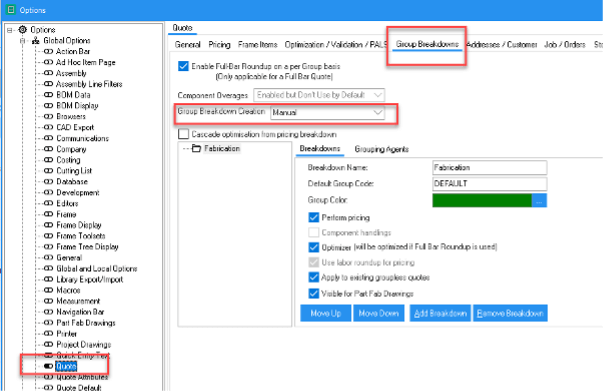
Until dataset release #07, the CRE8 database has had Grouping Agents automatically enabled. From Dataset #07, it will be possible to set the Grouping Agents to be run manually (i.e. not enabled by default).
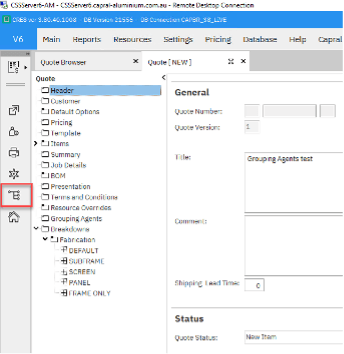
See below for an example project where Grouping Agents are enabled. As you can see, there is already a Default group listed under Breakdowns which contains everything in the quote.
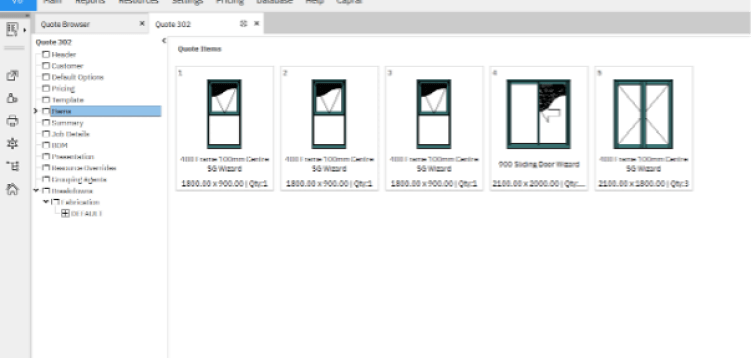
Select the Sync Breakdowns button to generate the Groupings. This splits the quote into the different groups.
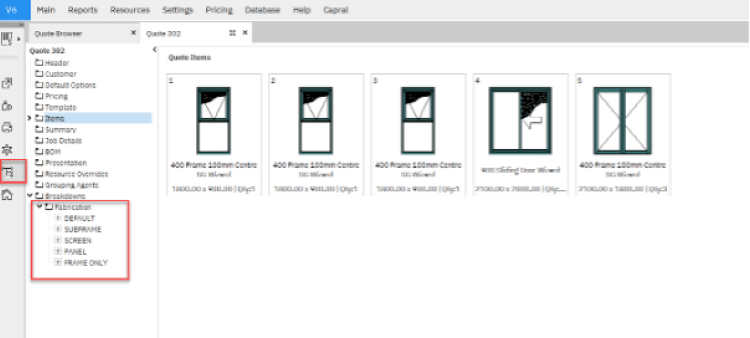
You can reset all the breakdowns back up to a single Default group by right-clicking on the Breakdowns however they cannot be removed entirely.
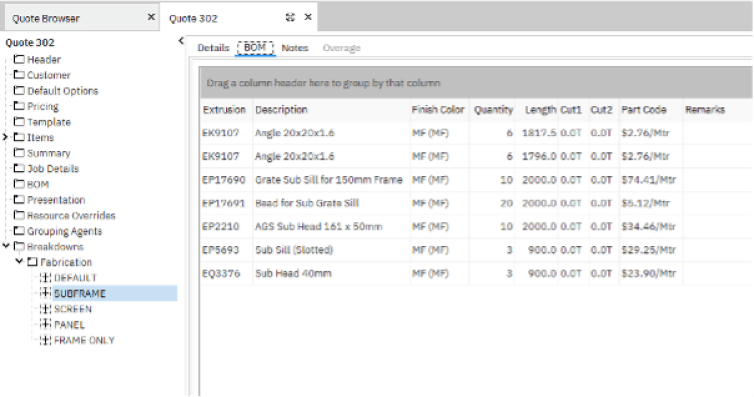
After Grouping Agents have been run, if you select the Subframe group and check the BOM, this will only show those extrusions that are setup as Subframes.
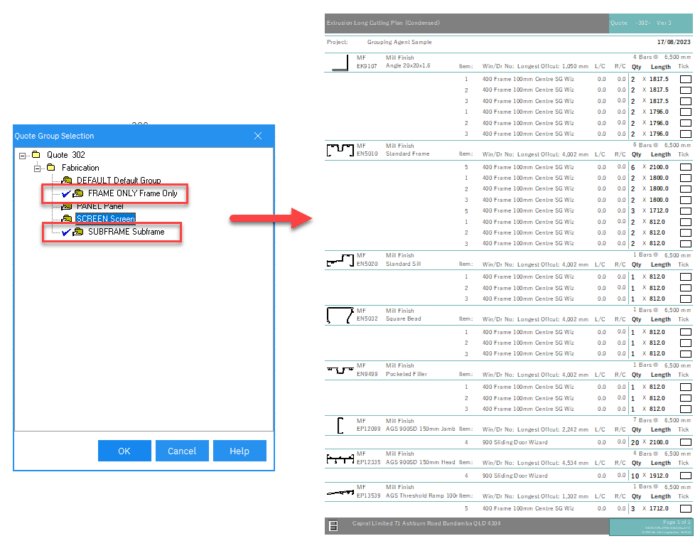
Certain reports are configured to take advantage of the Grouping Agents and when run, they will ask which Groups to include on the report. In this example, we have selected Frames & Subframes and these are then filtered in the Cutting List Long report.
How Do I Turn Grouping Agents On or Off?
In CRE8 3.8 Grouping Agents have been set to run automatically for all installations through to August 2023. To change this setting so they don’t run automatically, go to Settings, Options. Select Quotes, the Group Breakdowns tab and then change Group Breakdown Creation to Manual.
To manually run the Grouping Agents, click the Sync Breakdowns button on the Action Bar.
Which Reports support Grouping Agents?
Groupings are only relevant to certain reports and therefore, not all reports have been configured to handle Groupings. However, it is important to note that certain reports must be specifically configured to support (or not) Grouping Agents. Therefore, two sets of reports are required in some instances and the correct one must be used depending if Groupings have been run on the quote or not.
With Dataset #07, we will be providing two copies of the below reports – one with Grouping Agents enabled (current reports) and the other without (new).
| Report | Filename with Grouping Agents enabled (existing) | Filename with no Grouping Agents (new) |
|---|---|---|
| Cut Plan Long | CAP38 Fabr Extn CLng.qr | CAP38 Fabr Extn CLng_NGr.qr |
| Cut Plan Long Condensed | CAP38 Fabr Extn CLngCond.qr | CAP38 Fabr Extn CLngCond_NGr.qr |
| Cut Plan Short | CAP38 Fabr Extn CSht.qr | CAP38 Fabr Extn CSht_NGr.qr |
| Glass Cutting Plan | CAP38 Fabr Glss Cutt.qr | CAP38 Fabr Glss Cutt_NGr.qr |
| Extrusion Purchase Order | CAP38 Fabr POrd Extn.qr | CAP38 Fabr POrd Extn_NGr.qr |
| Glass Purchase Order | CAP38 Fabr POrd Glss.qr | CAP38 Fabr POrd Glss_NGr.qr |
| Component Purchase Order | CAP38 Fabr POrd Comp.qr | CAP38 Fabr POrd Comp_NGr.qr |
Print Macro Updates
In Dataset #07, we have updated the Print Macro to automatically detect whether the Quote has Grouping Agents run and will select the correct report. If you have made changes to any of the above standard reports, you will need to update the lookup matrix with the correct report filename(s). Please contact Capral if you would like assistance with this.
Native Report Updates
In Dataset #07, we are adding new reports that support quotes with Groupings disabled (“NGr” added to the filename). Therefore, if you leave Grouping Agents enabled, you will see no impact.
If you change the Grouping Agents setting to run manually, you will need to update your report links to the above filenames. These can be changed in Reports – Report Links. Please contact Capral if you would like assistance with this.
Note: These new ‘NGr’ reports will not run on any existing quotations prior to this release as they will all have Grouping Agents enabled.


