
Here is a video showing how to import a price file into CRE8 3.8 or you can work through the step-by-step instructions below.
You can also download this here.
1. Save your price file to your computer
When you receive your price file via email or download from a link, save this file into a location that is accessible from the computer with cre8 installed.
Note that the price file for 3.8 is different to that used in 3.6 and they are not cross-compatible. Thew filename for the new 3.8 price files begins with CAPMXP.
2. Start the price file import
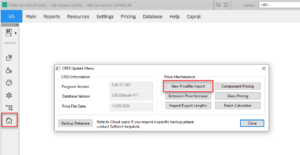
1. Open Cre8 Update from the Capral menu or directly from the Action Bar.
2. Select ‘New Pricefile Import’
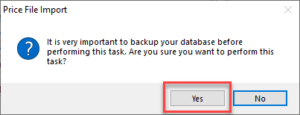
3. When prompted, select Yes to continue.
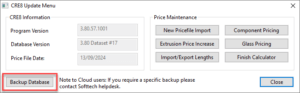
Please note, Capral highly recommends back-ups are done regularly and every time there is a change to the data in cre8. This can also be done in the Capral update Menu. For Cloud users, this is handled automatically by SoftTech. For network users, please contact your system administrator.
4. Select the button on the right-side of the dialog box beside Price File to bring up the file selection box and navigate to your downloaded price file.
5. Do the same for the log file.
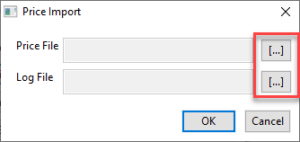
6. Click OK to start the import.
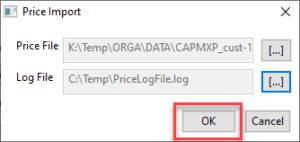
7. The price file will then be imported into your system. This may take 5-10 minutes depending on your computer speed.
Please note, once the import is complete a dialog box will be displayed notifying you of this. In some cases, particularly if you change to another application while the import process is underway, the dialog box may ‘hide’ behind the application.
If the import seems to be taking longer than it should, be sure to check by selecting cre8 in the taskbar which will bring the dialog box to the front of the screen.
8. Once the dialog box is displayed, you can select No to continue or Yes if you want to view the contents of the log file.
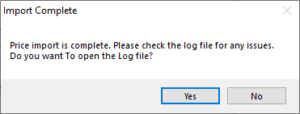
9. Your new price file has been imported!


